Why a UPI QR code
UPI is how India pays: the network handled a record of about 24.5 billion transactions in August 2026 (Business Standard). A UPI QR code holds your UPI ID and name in a standard format, so customers can pay from Google Pay, PhonePe, Paytm, BHIM or their bank's app without typing anything.
The code we create is static: it contains your payment details directly, there is no service in between, and it never expires.
What you need
- Your UPI ID (also called VPA), for example yourshop@okaxis. You will find it in the profile section of your UPI or bank app.
- The payee name exactly as your bank shows it, for example Sharma General Store.
- Optionally an amount and a note.
Step by step
- Open the UPI and payment QR code generator. The UPI tab is selected.
- Enter your UPI ID and payee name.
- Leave the amount empty for a counter code (customers type the amount), or enter a fixed amount for a single product, a fee or an invoice.
- Add a note if you want it to appear in the customer's app, for example an order number.
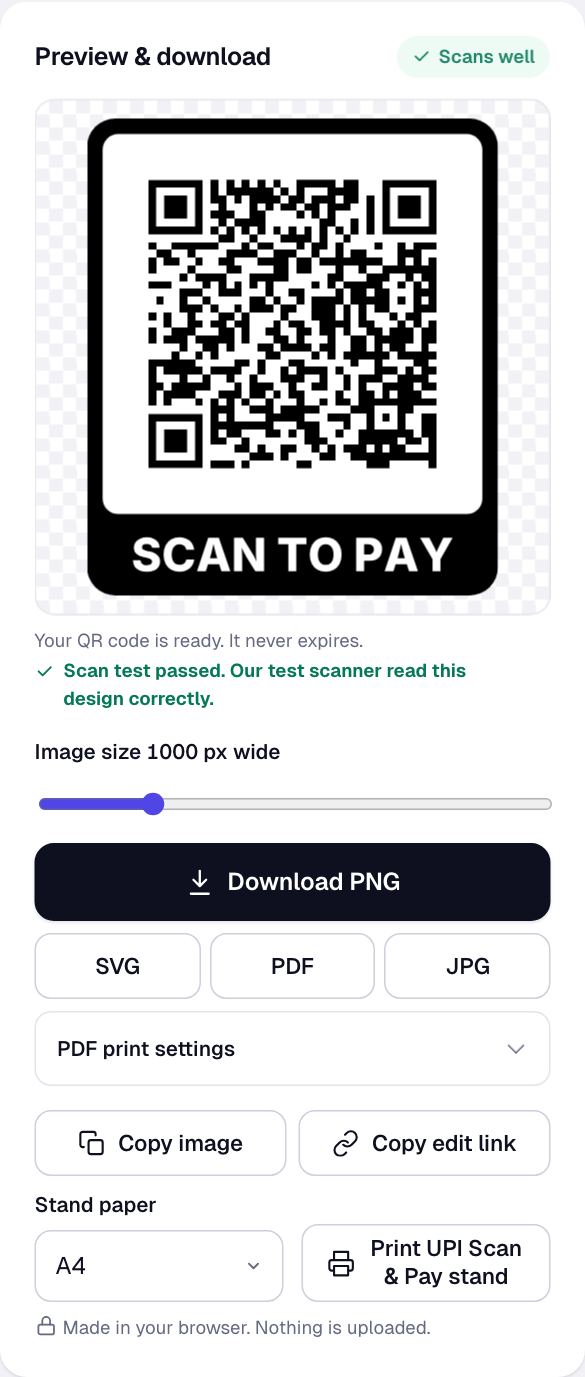
- Check the preview: the "Scans well" badge means our test scanner read it correctly.
Fixed or open amount?
| Open amount | Fixed amount | |
|---|---|---|
| Best for | Shop counters, market stalls, tips | One product, a fee, an invoice |
| Customer types the amount | Yes | No |
| One code for everything | Yes | One code per amount |
For a counter, an open amount is simplest. For invoices, create a code per invoice with the exact amount and the invoice number as the note.
Print a "Scan & Pay" counter stand
Click Print UPI Scan & Pay stand under the preview, or choose the UPI stand on our printable templates page. You get an A4 or Letter PDF that folds in half into a stand, with your shop name and UPI ID printed below the code.
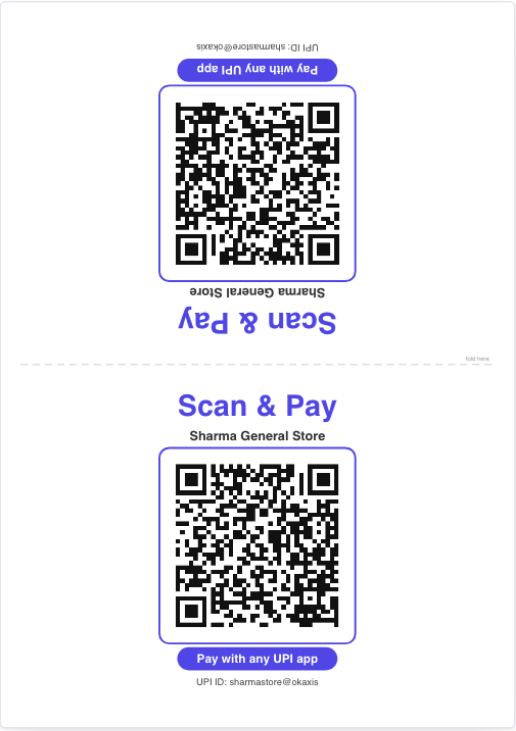
Print it at 100% ("actual size"), on thick paper if you can, and keep the code at least 4 to 5 cm wide so customers can scan it from the other side of the counter.
Test before you use it
Pay yourself ₹1 from a different phone and a different UPI app. Check that the name the app shows matches your shop, and that the money arrives in the right account.
Keep it safe from fake QR stickers
Fraudsters sometimes stick their own QR code over a shop's code, so payments go to them. Police and councils in several countries have warned about fake codes on parking meters and counters, and the same trick is used at shops.
- Check your stand every day, especially after busy hours.
- Laminate it or put it behind clear plastic, so a sticker can't be added unnoticed.
- Tell customers to check the name their app shows before paying. Your stand prints your shop name for exactly this reason.
- If you suspect a fake, scan it with our QR safety scanner to see the payee details before anyone pays.
Personal or merchant UPI ID?
Small shops often start with a personal UPI ID. Banks may limit how a personal ID is used for business payments, and a merchant ID can add features such as payment sound boxes and settlement reports. Ask your bank which is right for your volume; the QR code works the same either way.
Where to place the code in your shop
- At the billing counter, facing the customer, at chest height. A folded stand works better than a sticker on the counter top because customers don't have to lean over.
- Near the exit or packing area if customers pay after packing.
- On delivery bags and bills for home delivery, with a fixed-amount code per order or an open-amount code and the order number written beside it.
- At a market stall, clip the stand to the front of the table so the code stays visible when the stall is busy.
Keep the code away from glare: a laminated stand under a tube light can reflect straight into the customer's camera. A matte finish or a small tilt solves it.
Common problems and fixes
| Problem | Likely cause | Fix |
|---|---|---|
| App shows a different name | UPI ID typed wrongly | Check the ID letter by letter and make a new code |
| Customers struggle to scan | Code printed too small or glossy | Print at least 4 to 5 cm wide on matte paper |
| Payment fails at a fixed amount | Amount above the customer's UPI limit | Use an open amount for large bills |
| Some apps don't show the note | The note field is optional in UPI apps | Keep important details on the bill too |
Record keeping
Each UPI payment shows up in your bank or UPI app with the payer's name and the amount. If you give each invoice its own fixed-amount code with the invoice number as the note, matching payments to invoices becomes much easier at the end of the day.
Frequently asked questions
Is this UPI QR code free?
Yes. Creating, downloading and printing it is free. We never touch the payment; money goes straight from the customer's bank to yours through UPI.
Does it work with Google Pay, PhonePe and Paytm?
Yes. It uses the standard UPI format that every UPI app reads.
Will the QR code expire?
No. It is a static code containing your UPI ID. It works as long as your UPI ID is active.
Can I add my shop logo?
Yes. Use the Logo tab in the generator. Keep the logo small so the code stays easy to scan.
Do I need a GST number or a merchant account?
No. Any active UPI ID works in the code. A merchant account is a choice your bank can advise on, not a requirement for the QR code.
Can I use the same code at two shops?
Yes, if both shops use the same account. Use separate UPI IDs if you want to tell their payments apart.